A focused Keycloak extension Development preview

From invitation
to working SSO.

Let your customers configure single sign-on through a guided setup link. Keep accounts, permissions and connection control in your existing Keycloak.

One owner panel. One customer wizard.
See the handoff from both sides.

Explore the walkthrough

The setup journey

Four steps. A clear handoff.

Actual product screens with example data and masked credentials.

Existing Keycloak owner

Start with a scoped invitation.

Sign in with your existing Keycloak administrator login. Choose a realm connection, or an organization when Organizations are enabled.

Set the allowed protocol, expiry and testing policy. Share the generated link with the customer's identity-provider administrator.

The recipient gets a setup link, without general Keycloak administration.

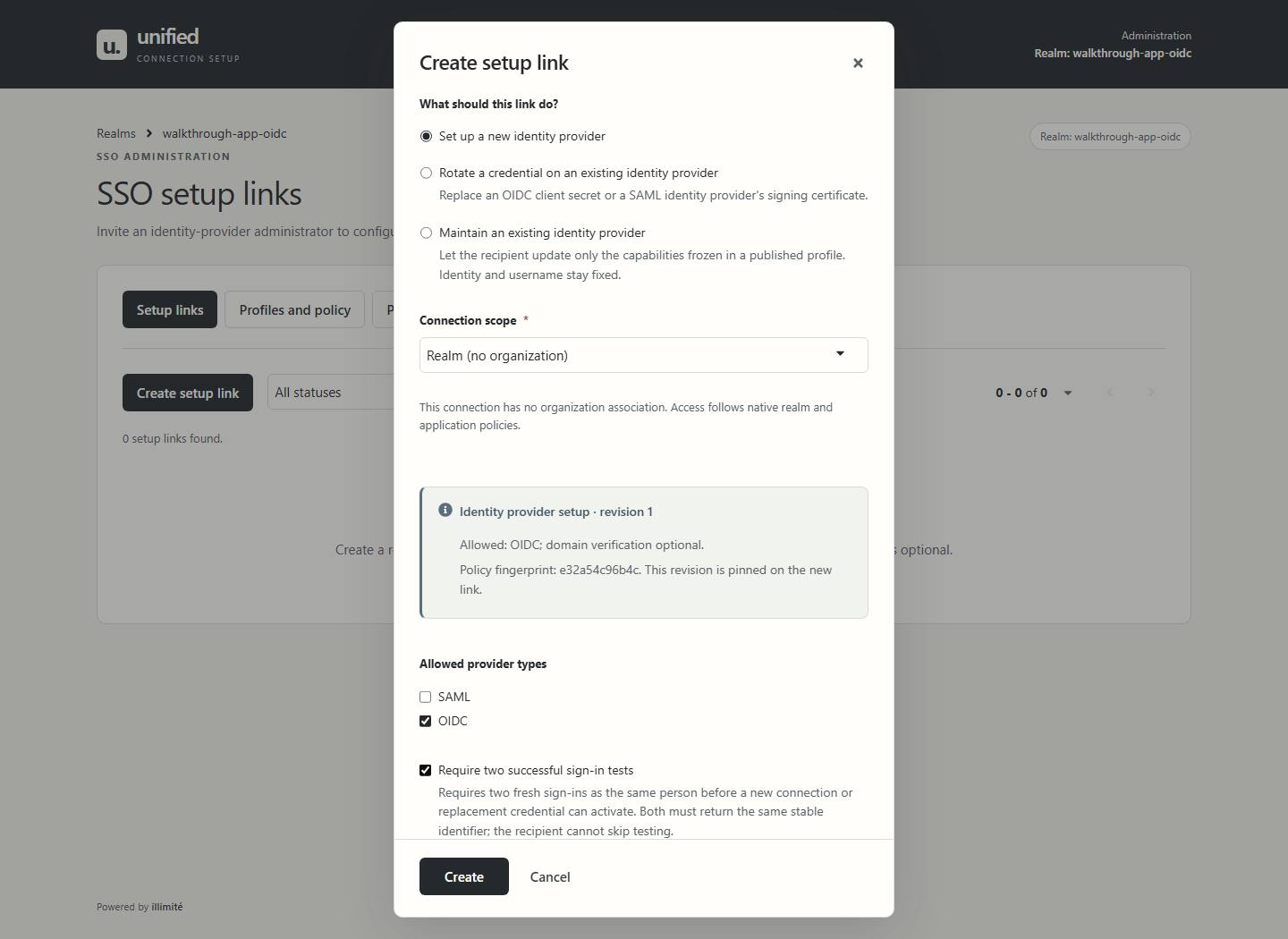
Owner panel Create invitationView full screenshot
The owner panel's invitation form, including realm or organization scope, protocol, expiry and test policy.
Actual owner interface · example data

Customer's IdP administrator

Connect the customer's identity provider.

Open the invitation and register an application with the customer's OpenID Connect provider. Enter its discovery or endpoint details and client credentials.

Register the exact callback shown by the wizard. Then choose the stable identity and map the profile fields your application needs.

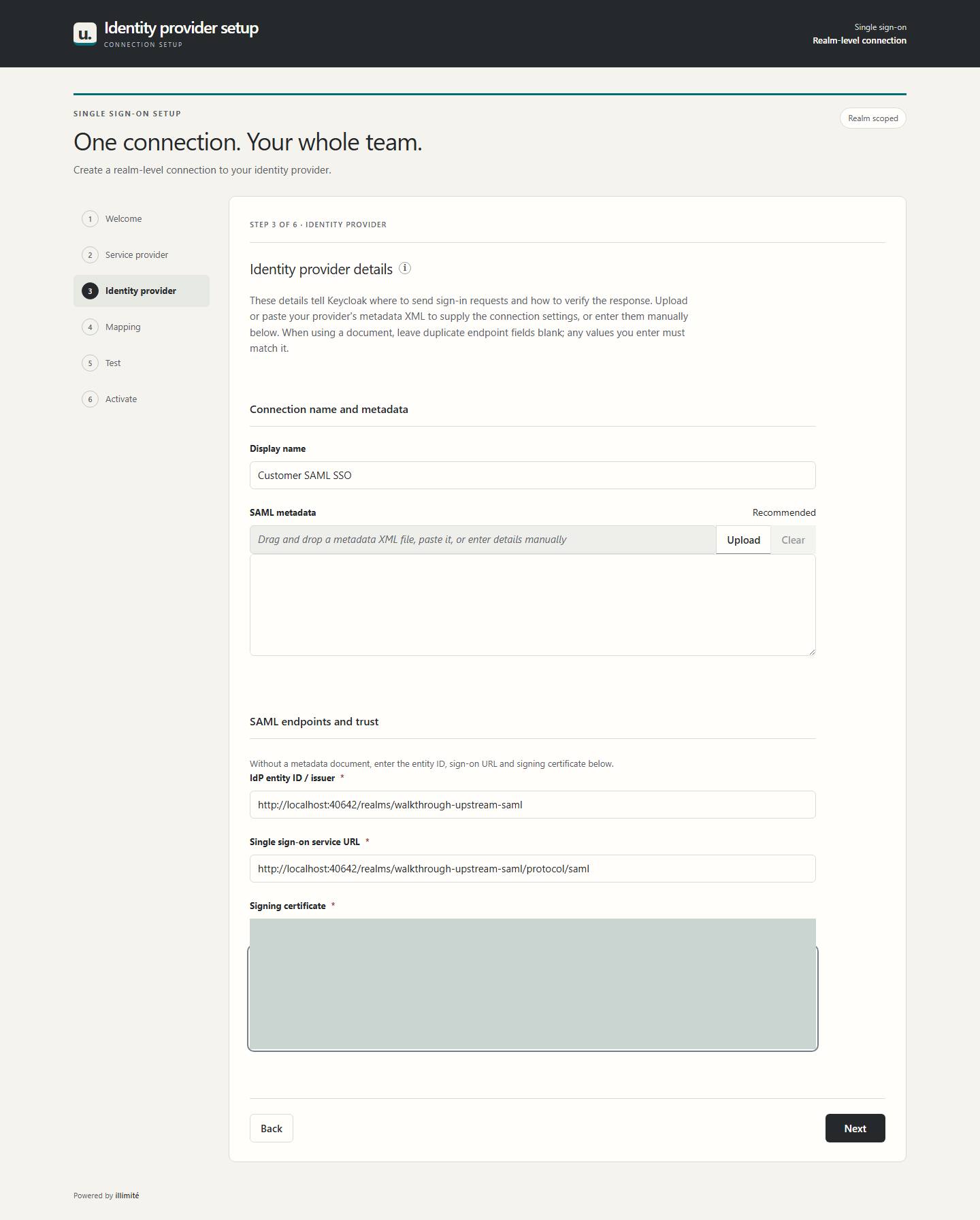
Open the invitation and import the customer's SAML metadata, or enter its entity ID, sign-on URL and signing certificate.

Choose a stable NameID or released identity attribute. Once the draft is saved, register its exact ACS URL or import the generated service-provider metadata.

See the SAML registration screen

The wizard saves a hidden draft before testing.

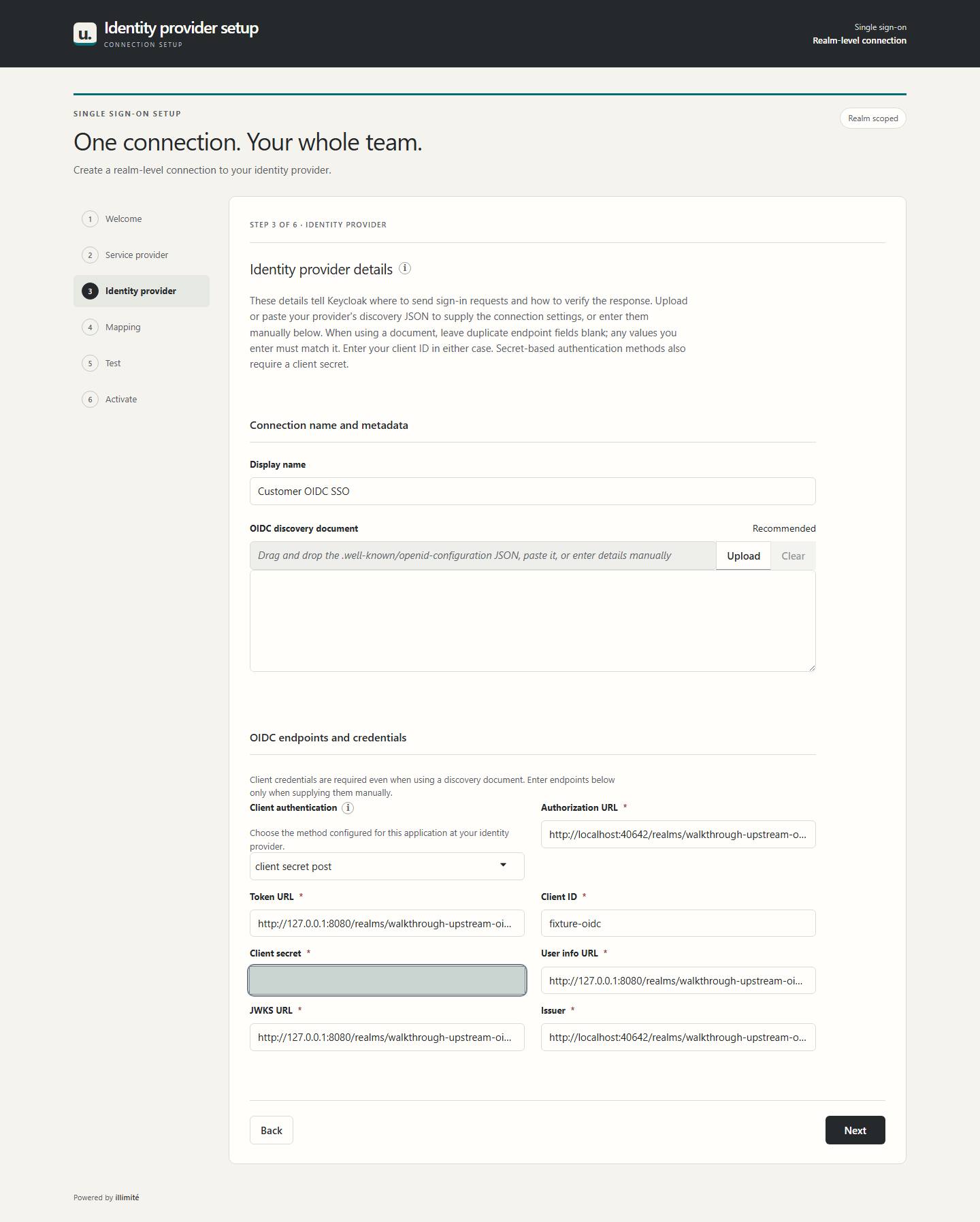
Customer wizard OIDC configurationView full screenshot
The customer OIDC configuration page showing discovery, endpoints and client settings with secret values masked.
Actual customer interface · OIDC configuration
Customer wizard SAML configurationView full screenshot
The customer SAML configuration page showing metadata import and identity-provider fields with certificate content masked.
Actual customer interface · SAML configuration

Customer's IdP administrator

Confirm one stable identity.

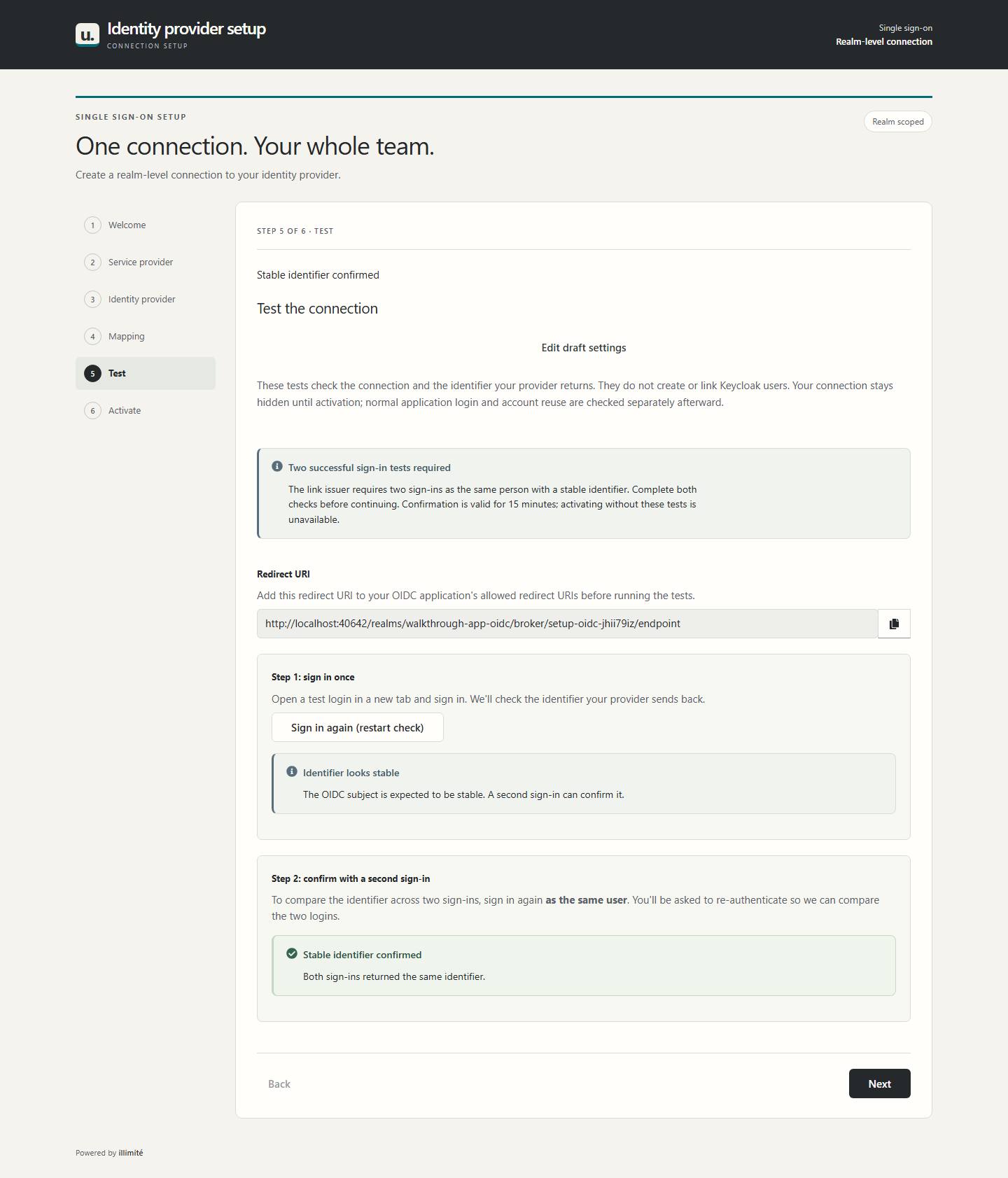
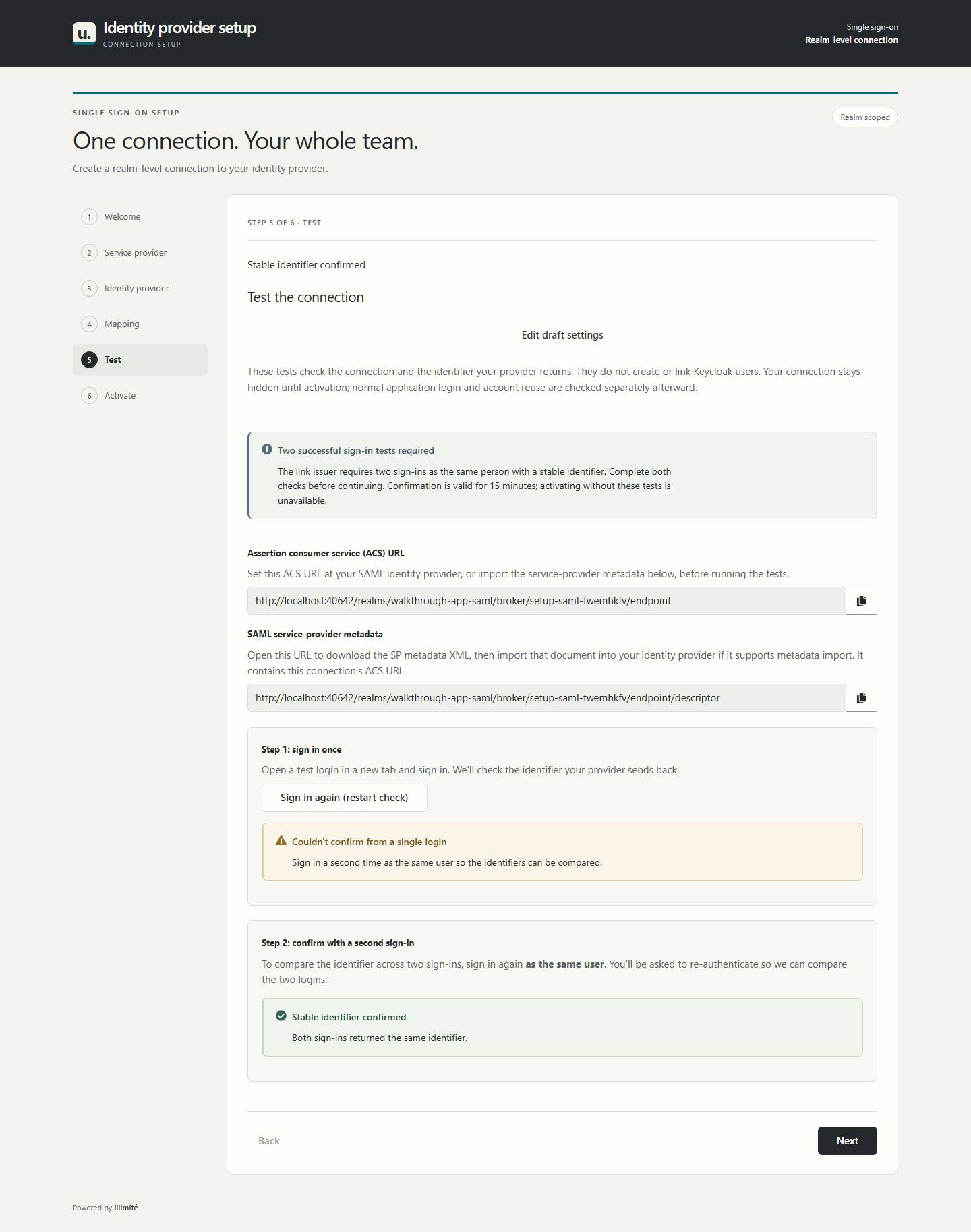
This invitation requires two successful sign-in tests. Sign in as the same person twice; the second test requests fresh authentication.

The checks compare the stable identifier returned by the provider. A changing or transient identifier needs correction before activation.

The two-test policy is optional for new setup links. When enabled, it cannot be bypassed.

Customer wizard OIDC test resultsView full screenshot
OIDC test results showing two successful sign-ins and confirmation of the same stable identity.
Two successful sign-in tests · OIDC
Customer wizard SAML test resultsView full screenshot
SAML test results showing two successful sign-ins and confirmation of the same stable identity.
Two successful sign-in tests · SAML

Customer's IdP administrator

Put the connection into service.

Review the configuration and activate while the required test results are current. The draft becomes a native Keycloak identity provider.

The owner can see the completed invitation. Your team can then verify an ordinary application sign-in and native account reuse.

Keycloak continues to own users, sessions and access decisions.

Customer wizard OIDC activationView full screenshot
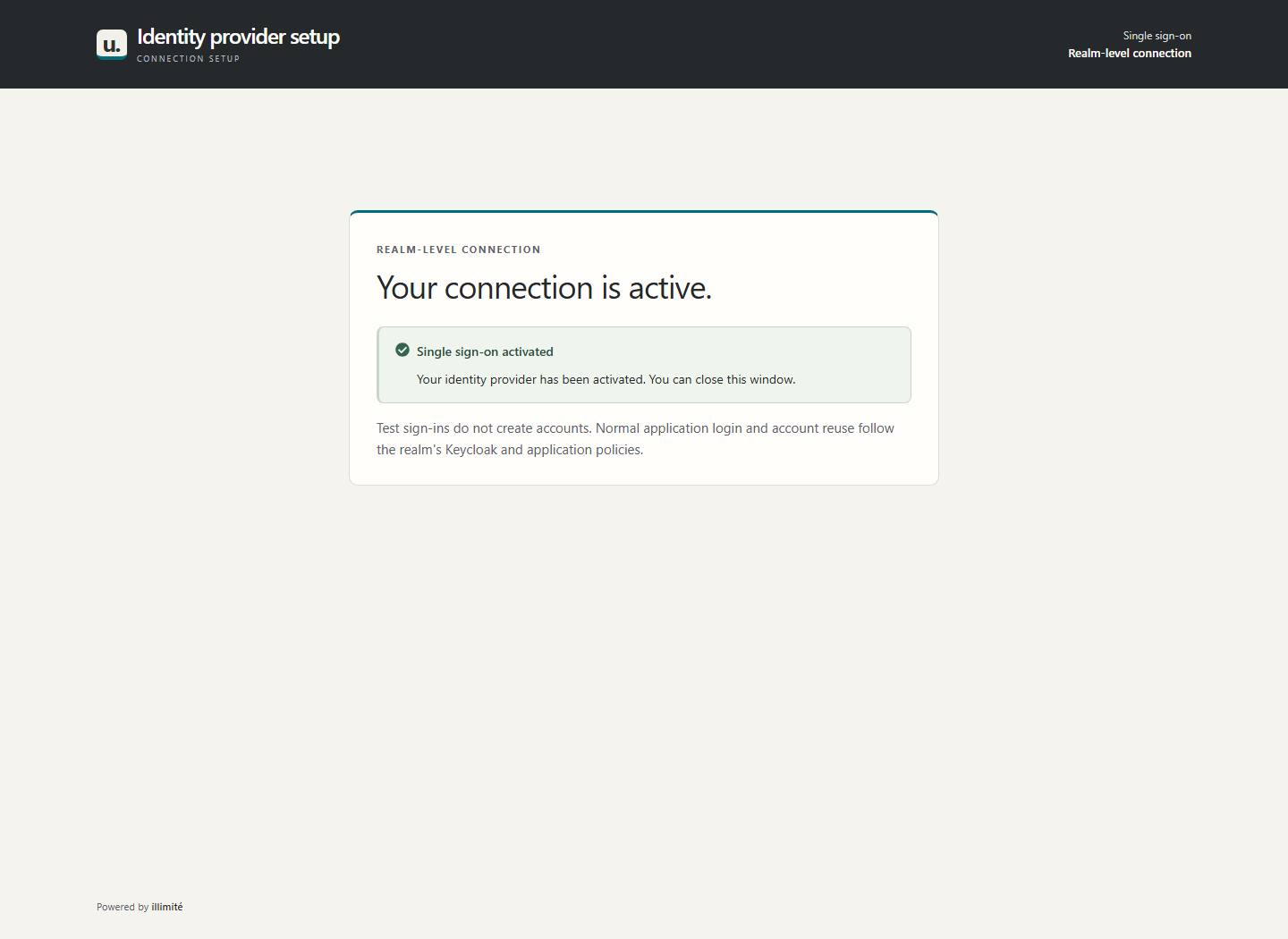
The completed OIDC wizard confirming that the connection has been activated.
Actual activation screen · OIDC connection
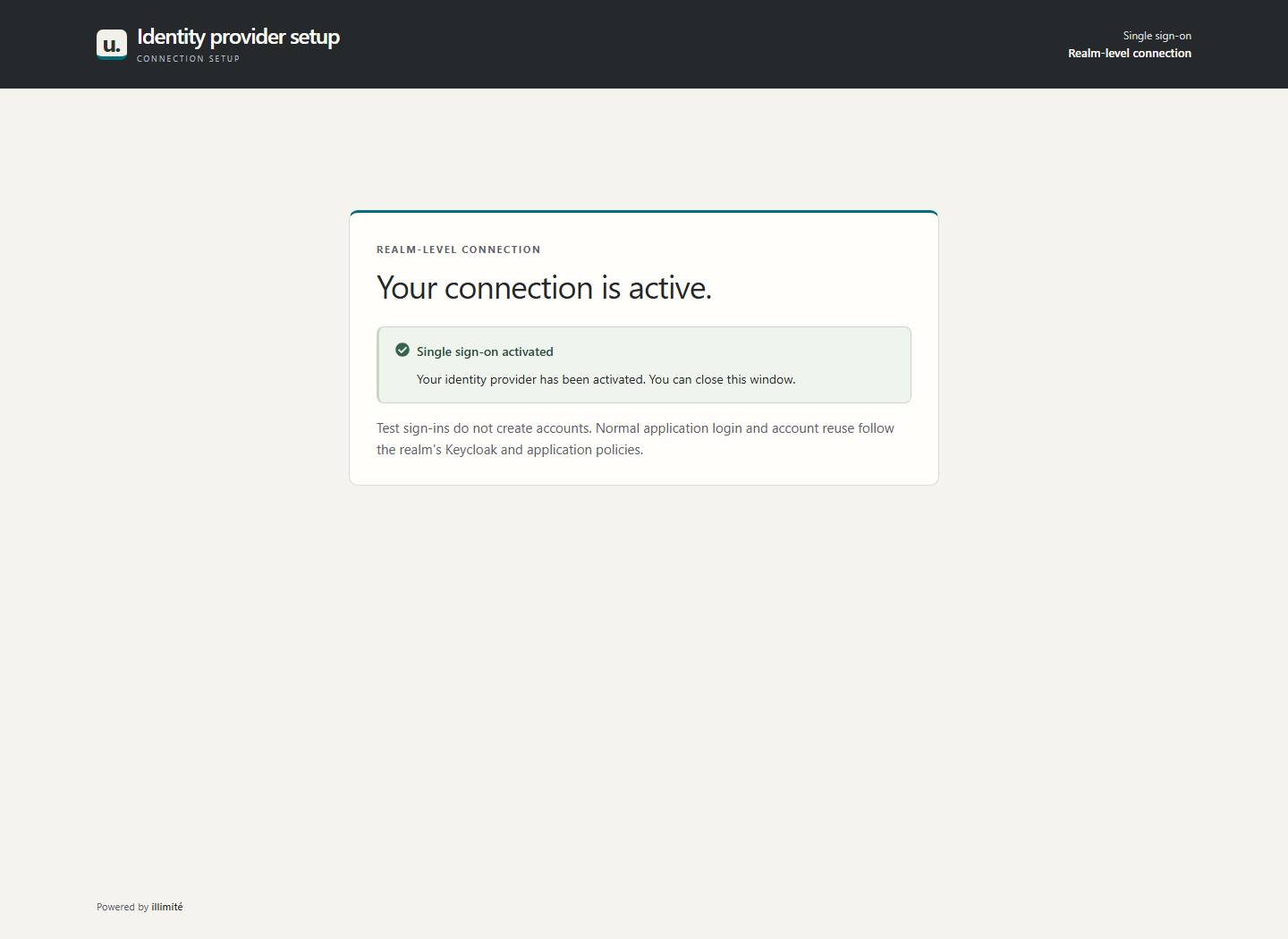
Customer wizard SAML activationView full screenshot
The completed SAML wizard confirming that the connection has been activated.
Actual activation screen · SAML connection

Delegate the setup, keep the control

A useful layer around
the platform you already run.

The extension handles the setup journey. Native Keycloak handles identity.

Give each invitation boundaries.

Choose its realm or organization, permitted protocol and expiry. Revoke a link when it is no longer needed. Organizations are optional.

Make good defaults reusable.

Setup profiles are the owner's reusable rules for what a recipient can configure or change. Each invitation keeps the policy it was issued with.

Keep the handoff after launch.

Use scoped links for client-secret or signing-certificate rotation. Maintenance profiles can allow selected connection changes, with two successful tests.

Still your Keycloak. Native accounts, sessions, brokering and access policies stay with the host platform. The extension stays focused on SSO setup and maintenance.

Installation footprint

One provider JAR.
Your existing Keycloak.

Both interfaces ship with the extension. No separate frontend service, plugin database or runtime Node installation is required.

Qualified baseline Keycloak 26.8.1

  1. 01

    Add the extension to your server image.

    Place the JAR in Keycloak's providers/ directory, then run bin/kc.sh build before starting the optimized server.

  2. 02

    Use your existing deployment configuration.

    Keep the host's supported database and connection settings. Configure the plugin's shared rate-limit key and deployment policy alongside your public hostname, proxy and TLS settings.

  3. 03

    Open the owner panel.

    Use your existing Keycloak administrator login. The plugin has a separate panel; it is not a menu inside the native Admin Console.

Owner panel URL patternhttps://YOUR-KEYCLOAK/realms/master/idp-setup/admin

The JAR adds its own metadata tables through Keycloak's existing database connection. Owner-managed setup profiles and permitted branding live in the panel; infrastructure secrets and server settings remain deployment configuration.
Product screenshot

Original masked screenshot · scroll to inspect the full interface · Escape to close